
# App collection
In this section, we present a number of official apps available in Virtuoso:
- Flow: enables you to build custom automation on top of Virtuoso.
- Slack: facilitates the receiving of easy-to-understand notifications about your executions on Slack.
- Testrail: Enables synchronization of projects, goals, journeys, and executions to TestRail (opens new window).
- Xray: Enables synchronization of projects, goals, journeys, and executions to Xray Test Management for Jira (opens new window).
- Jira: Enables creating and assigning issues in Jira (opens new window) and track their status through Virtuoso's Ticket Tracking feature.
To learn more about building your own custom apps and integrations, please see building apps and integrations.
# App error logs
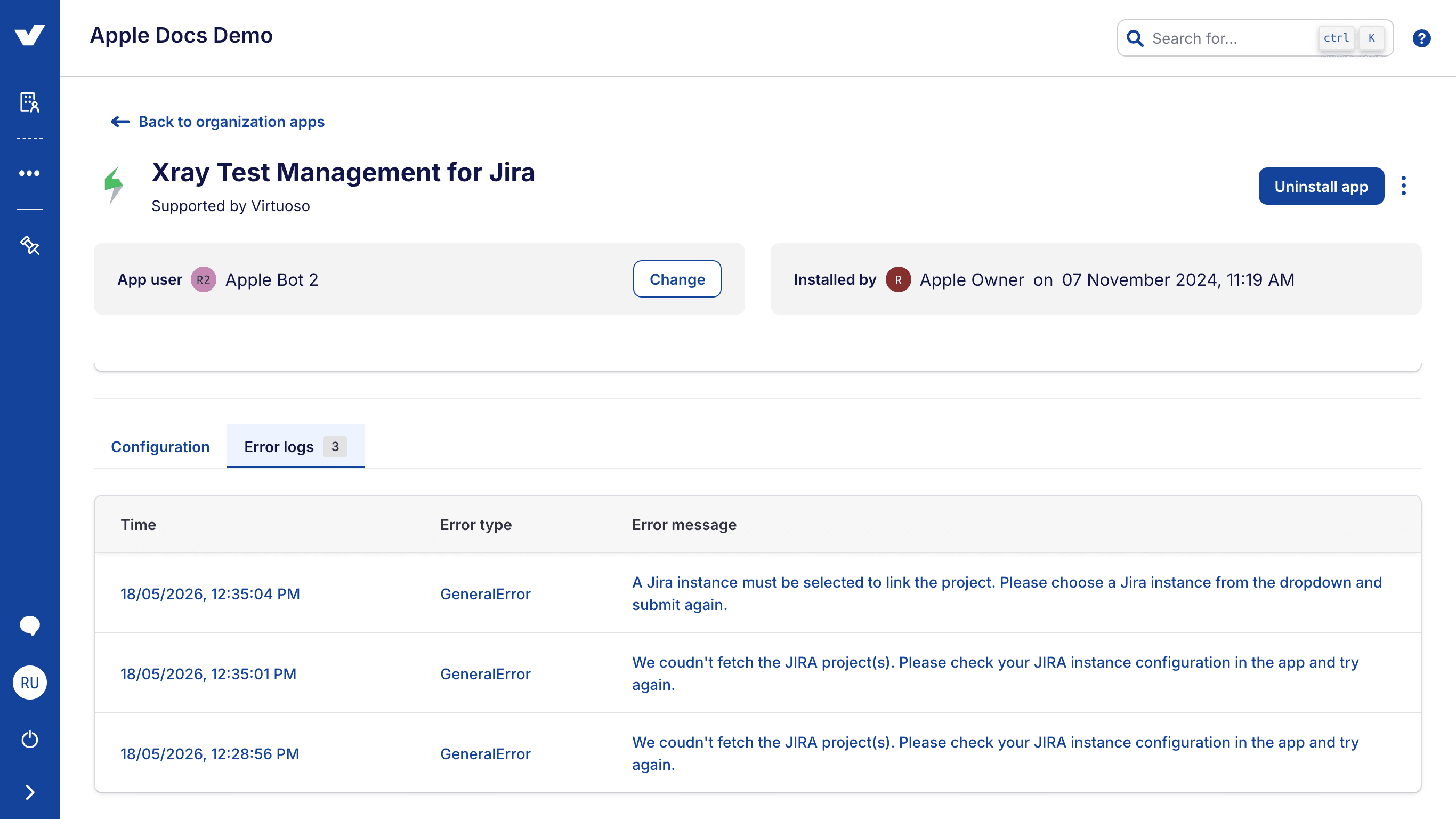
When an installed Virtuoso app talks to an external system (e.g., Jira, Xray, TestRail), it may run into problems on the other side — invalid credentials, missing permissions, an unreachable host, or a rejected payload. The Error logs tab on the app's installation page collects these errors in one place so you can spot recurring issues and react quickly, without leaving Virtuoso.
# Where to find it
- Open the organization management page and select the
Appstab. - Click an installed app to open its installation details page.
- Switch to the Error logs tab.
The number next to the tab title is a badge with the count of error entries currently reported by the app.
Tab availability
The Error logs tab is only enabled for apps whose integration supports reporting errors. If the app you are looking at does not, the tab appears disabled.
# Reading the table
Each row in the table represents a single error reported by the app. The table shows:
- Timestamp — when the error occurred.
- Type — a short category for the error, as reported by the app (e.g., the kind of operation that failed).
- Message — a one-line summary of what went wrong.
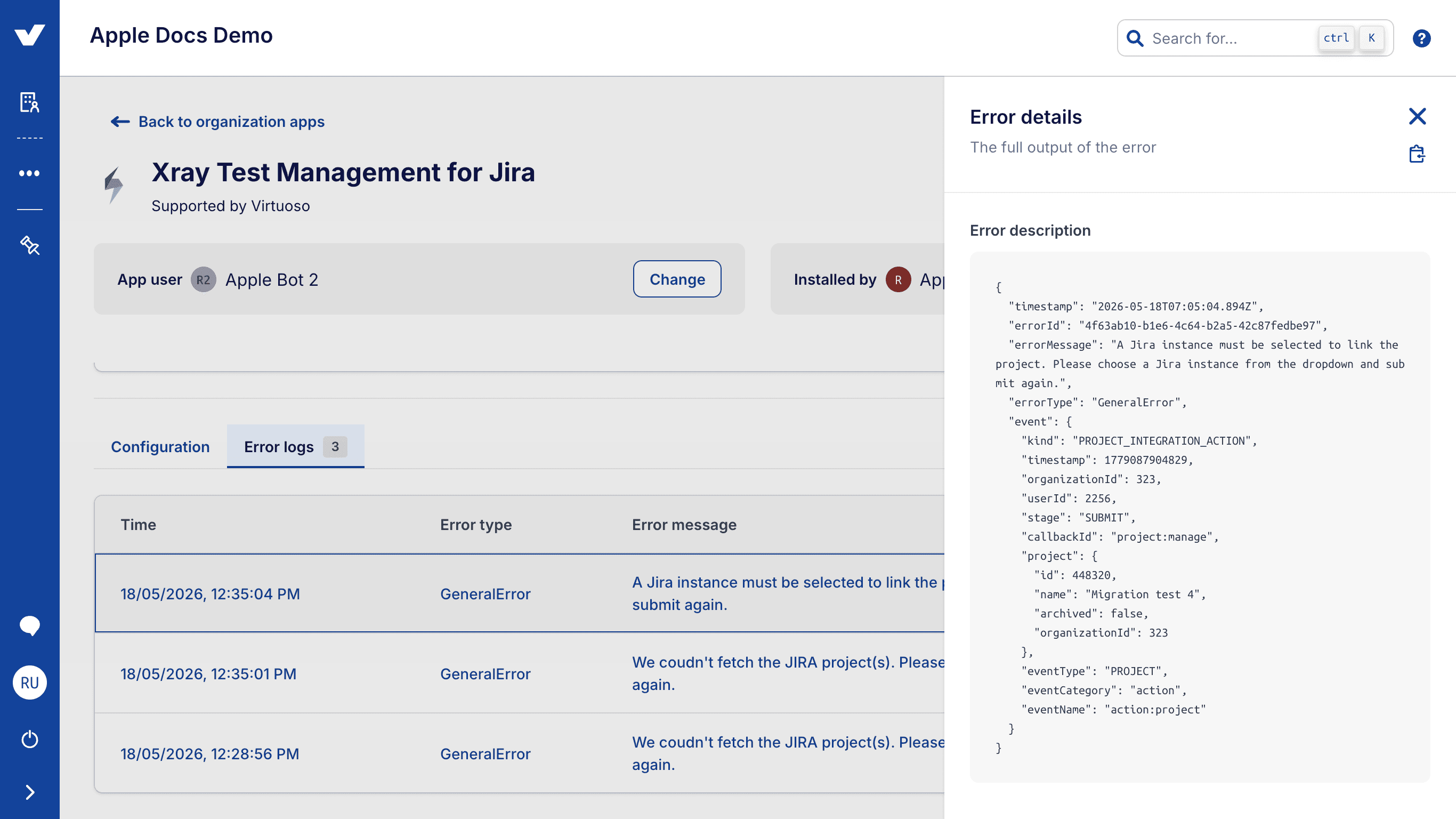
Click an error row to open a side panel with the full timestamp, type, and message — useful when the message is long.
# Loading and error states
- Loading — While Virtuoso fetches the latest entries, the table shows skeleton rows. The list refreshes each time you visit the tab, so you always see the latest reports without needing to refresh the page.
- Failed to load — If Virtuoso cannot retrieve the entries (for example, the app itself is unreachable), a red banner is shown with a
Reloadbutton. Click it to retry.
# What to do with the errors
The Error logs tab is a starting point for triage. Common next steps:
- If you see authentication or permission errors, revisit the app's configuration and the credentials of the associated app user.
- If errors point to the external system being unreachable, check that system's status before re-running anything in Virtuoso.
- For repeated errors of the same type, consider reporting the issue to the team that maintains the app.