
# Notification Center
The Notification Center keeps track of your runs, the comments that mention you and your Touchstone activity, across every project in the organization you have access to. Click the bell in the top bar to open it. The number on the bell is how many threads have unread notifications.
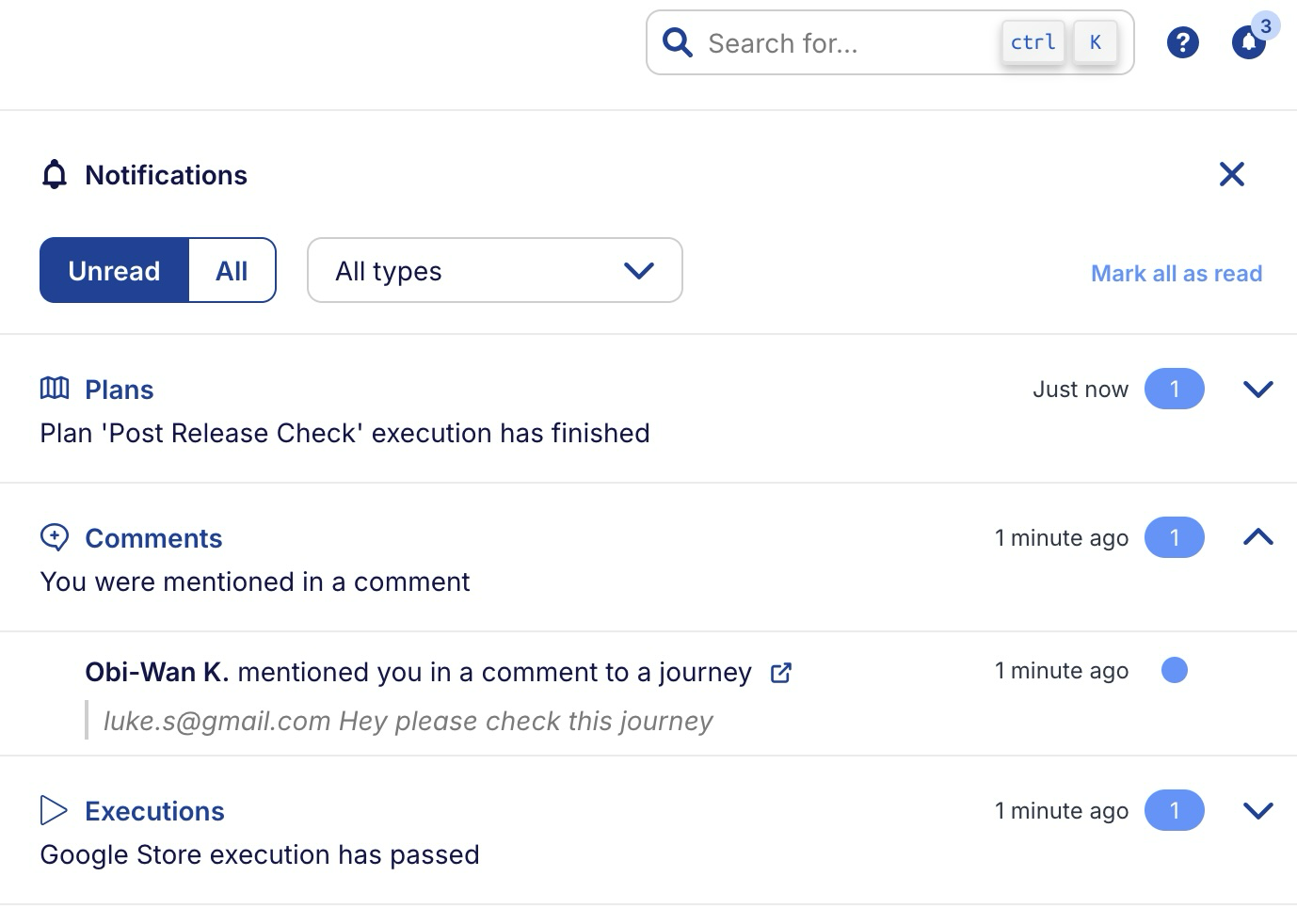
New notifications come in while you work, so you don't need to refresh the page to see them.
# What you get notified about
| Type | You're notified when | Grouped into | The notification opens |
|---|---|---|---|
| Executions | an execution you started on a goal finishes | one thread per goal | the execution report |
| Orchestrations | an orchestration execution you triggered finishes | one thread per orchestration | the orchestration execution |
| Plans | a plan run you executed finishes | one thread per plan | the plan details |
| Comments | someone mentions you in a comment | one thread per mention | the comment in the timeline |
| Analyst | an Analyst chat you started responds or fails, a knowledge base source you added changes, or one of your requirements or journeys changes state | one thread per chat, source, requirement or journey | the chat or the source |
| Architect | an Architect chat you started responds or fails | one thread per chat | the chat |
| Autopilot | an Autopilot run you started starts, needs your input or ends | one thread per run | the journey, with the run open |
# Executions
Each run in a goal's thread says whether it passed, failed or was canceled. For a single journey it names the journey, and for several it tells you how many failed, for example 2 of 5 journeys failed.
Executions that are part of a plan run or an orchestration execution show up in the plan's or the orchestration's thread instead, so running either doesn't create a separate thread for each of its goals.
# Orchestrations
Each execution in an orchestration's thread says whether it passed, failed or was canceled. A scheduled orchestration is attributed to the user who created the schedule, so that user gets the notification.
# Plans
Each run in a plan's thread shows its outcome. If the latest run failed, the notification has a Re-execute failed plan journeys button, which starts a retry execution with only the failed journeys, the same as re-executing from the plan details page.
Scheduled plan runs aren't started by anyone, so they don't show up in the Notification Center.
# Comments
A comment with a mention says who mentioned you and whether the comment is on a goal, a journey or a step. You still get the mention email too, as described in Timeline.
# Touchstone AI
Analyst, Architect and Autopilot notifications come from Touchstone, so you only get them if your organization uses it.
An Analyst or Architect chat notifies you when it responds or when it fails to respond. A knowledge base source notifies you when one you added is added, updated or removed. A requirement or journey notifies you when its state changes, for example when it needs your review, when its proposed changes are ready to implement, or when Autopilot ran out of credits working on it. These requirement and journey notifications don't link anywhere, so open the requirement or journey from the project.
An Autopilot run notifies you when it starts, when it needs your input, and when it finishes, fails, halts or is cancelled. Its thread shows In progress while the run is going or waiting for you.
# Threads
Related notifications are grouped into threads, so repeated runs of the same goal, orchestration or plan share one entry instead of filling up the list. The most recently updated threads are at the top. Each thread shows its type, a title describing its latest notification, when it was last updated, and how many notifications it holds.
Click a thread to expand it and see its notifications, newest first. If a thread has more than fit, click the older notifications link at the bottom to load them.
Click a notification to go to what it's about. This marks the thread as read and closes the Notification Center.
# Read and unread
A thread with unread notifications shows its count in color, and each unread notification inside it has a dot next to it. A thread becomes unread again when a new notification arrives in it.
The bell and a thread's count turn to the warning color when something needs your attention, such as an Autopilot run waiting for your input or an Analyst or Architect chat that failed to respond.
To mark a thread as read without opening anything, click its count. Mark all as read at the top of the Notification Center marks every thread as read at once. It isn't available while the type filter is narrowed, so clear the filter first.
# Filtering
Use the All and Unread tabs to switch between every thread and only the unread ones. The Notification Center opens on the Unread tab with every type shown each time you open it.
The type filter narrows the list to the types you pick. Tick or untick a type to show or hide it, or click a type's name to show only that type (click it again to go back to all types). At least one type always stays selected.
# Who gets notified
Only the person who started a run or a chat is notified about it. Other project members and organization owners aren't, even if they're on the run's email recipients.
You only see notifications for projects you can currently access. If you lose access to a project, its threads are hidden from the Notification Center, and they come back if you regain access. Notifications from archived projects are hidden too.
# How long notifications are kept
Each notification is kept for 90 days, whether you've read it or not. A thread disappears once its latest notification is more than 90 days old.