
# Touchstone AI
Touchstone's capabilities are extended regularly, so some behaviour described here will continue to evolve.
Touchstone AI is being rolled out in phases. To get access, join the waitlist (opens new window) or speak to your Customer Success Manager.
Touchstone converts the context your organisation already holds (specifications, policies, domain knowledge and working conventions) into requirement-linked, executable tests, and maintains the link between them as your application and your documentation change. Rather than authoring tests step by step, you supply context, direct the analysis by submitting Agent Instructions through the Chat interface, and review the assets Touchstone proposes at each stage. Everything it produces runs on Virtuoso's deterministic execution engine, so the output is a standard Virtuoso journey: repeatable, cross-browser capable, and independent of AI at execution time.
Because Touchstone works from your context, requirements trace back to source documents, journeys trace back to requirements, and each proposal is versioned, so the pipeline doubles as a live requirements-traceability record.
# Interactive walkthrough
Prefer to see it before you read it? The interactive walkthrough steps through the build workflow and the change workflow one stage at a time, and every step links back to the page of this guide that covers it.
# What Touchstone does
- Derives tests from your documentation. Requirements and test structures are generated from the sources you select, so coverage reflects how your product is specified to behave, not guesses from the UI.
- Keeps you in the loop by design. Each stage produces proposals for you to refine, accept or reject in the Chat. Nothing is materialised into your project without review.
- Maintains what it builds. Touchstone is designed as a continuous loop: as documents, requirements or the application evolve, affected assets are flagged and updates proposed for review.
- Provides traceability. Requirements link to their source documents, journeys link to requirements, and requirements, data tables and environments are versioned, with visibility of what changed between versions.
- Keeps working while you're away. Analyses and runs carry on in the background, and when they finish, along with new sources and comments, they appear in a single notifications panel. When you come back, you can see what's ready and carry on from there.
# How it works
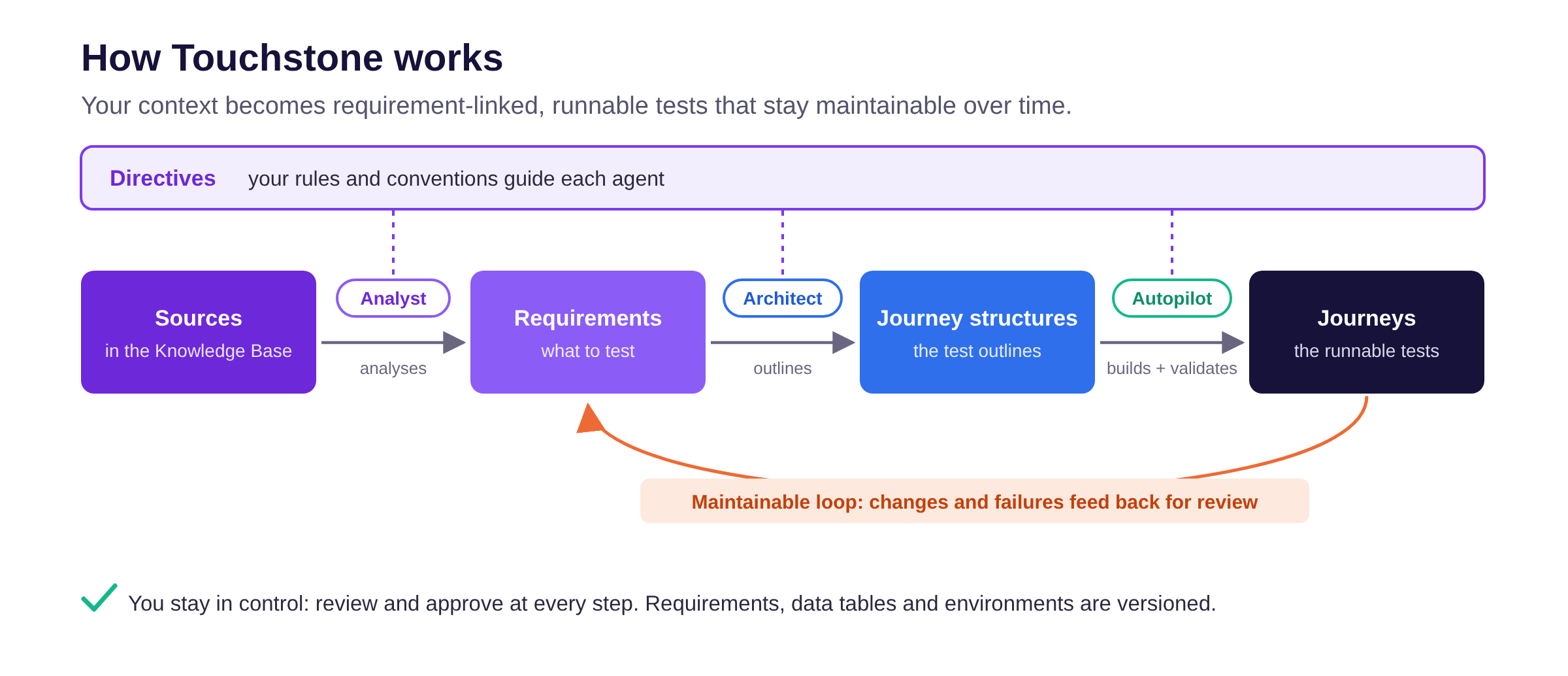
Touchstone moves from context to a runnable test in four stages:
- Knowledge Base. You upload your sources: specifications and other documents, plus images, diagrams and structured files such as JSON or API definitions. Each item is summarised and indexed so that relevant content can be retrieved on demand.
- Requirements. The Analyst analyses your selected sources and proposes requirements, each with a risk assessment and links to the documents it was derived from. You refine and approve them in the Chat.
- Journey structures. The Architect turns approved requirements into test outlines: checkpoints with objectives, plus the supporting Virtuoso assets (goals, data tables) the test needs.
- Autopilot. Autopilot builds the steps according to the outline against your application, and validates the result as a standard Virtuoso journey.
Directives apply across the pipeline: they inject your organisation's rules and conventions into requirements generation, journey generation and Autopilot, so output follows your standards without restating them in each conversation. The three sets are held separately and applied at their own stage. Directives are different from Agent Instructions: an Agent Instruction is an individual request submitted within a Chat, while directives are persistent rules and conventions that remain in force across future generations.
# In this section
- Building blocks covers what runs through the whole pipeline: directives, proposals and how you review them, notifications, and what happens while a response is generated;
- Knowledge Base, Requirements, Journey structures and Autopilot each go deeper on one stage;
- Step by step walks the whole pipeline from an empty Knowledge Base to a running journey, with a part for each stage, for repairs, for notifications and for reviewing a changed document;
- Going further covers background Autopilot runs, keeping tests up to date as documents change, getting the best results, and the current limitations.
# Key terms
| Term | Meaning |
|---|---|
| Knowledge Base | Your indexed source material, at organisation and project level |
| Chat | The conversation with an agent in which you submit Agent Instructions and review what it proposes |
| Agent Instruction | Any message you submit to an agent in the Chat: a request, a refinement, an adjustment to a plan, or a reply when Autopilot asks for input. |
| Directives | Persistent generation rules: instructions, conventions and templates. Unlike an Agent Instruction, a directive applies to every future generation |
| Requirements | What to test, derived from selected sources with risk level and traceability |
| Proposal | A generated asset awaiting review: versioned, comparable and reversible |
| Journey structure | The outline of a test: checkpoints with objectives, plus supporting assets |
Other terms are explained where they first come up.
# Quick reference
| You want to… | How |
|---|---|
| Give Touchstone the context to work from | Upload documents to the Knowledge Base; upload images as sources in their own right (Part 1) |
| Get a scanned PDF into the Knowledge Base | Run it through OCR first, then upload the searchable version. Images and screenshots don't need this: upload them as they are |
| Encode a standard once instead of repeating it | Write a directive against the stage it applies to (Part 2) |
| Produce requirements from your documentation | Select the sources, describe the feature, refine the proposals in the Chat (Part 3) |
| Turn a requirement into a test outline | Run Architect on the requirement row (Part 4) |
| Build the missing steps in a journey | Start Autopilot on the journey structure (Part 5), or queue the journeys as background runs |
| Influence how Autopilot approaches the work | Review and adjust the plan in the Chat before approving |
| Watch what it's doing | The preview panel: pages as Autopilot sees them, targets highlighted |
| Answer it when it gets stuck | Reply in the message box, or pick Skip checkpoint / Retry step |
| Confirm the journey runs deterministically | The automatic validation run at the end of the session |
| Repair a failing journey | Run Autopilot on it; review its root-cause analysis and any flags (Part 6) |
| Modify steps yourself | Edit while Autopilot is stopped, then start a new run |
| Verify across browsers and devices | Execute advanced on the journey, then Cross browser execution |
| Pick up what happened while you were away | The notifications panel, from the bell in the top bar (Part 7) |
| Bring tests into line with a changed document | Replace the file on the existing source, then Run Analyst on the flagged requirements and Run Architect on the flagged journeys (Part 8) |