
# Autopilot
This page explains what Autopilot does and how to steer it.
TIP
Part 5 of the step-by-step guide follows a build run as it happens and Part 6 a repair.
Autopilot is the final stage of the pipeline: the agent that turns a journey structure into a working test. Given a journey in which some checkpoints contain steps and others carry only an objective, it plans the work, drives a live browser session against your application, generates the missing steps as standard Virtuoso steps, and then proves the result with an AI-free validation execution. The output is an ordinary journey: editable, repeatable, and executed deterministically from then on. Journeys can also be built in the background: see Background autopilot runs.
Autopilot operates strictly within the structure it's given. The journey outline is the contract: it won't restructure the journey, take destructive actions, or edit assets shared with other tests without flagging them, and you approve the plan before it runs.
Three modes. Autopilot works at the journey level:
- Build. Complete a journey structure by generating steps for every checkpoint that has an objective but no implementation.
- Change. Apply a described modification to an existing journey: add a checkpoint, add a library checkpoint, remove a checkpoint, or rework a checkpoint against a new objective.
- Fix. Diagnose and repair a failing journey, distinguishing application change from genuine regression.
What Autopilot works on. The shape of the journey, meaning which checkpoints it has and which of them reuse library checkpoints, is settled when the structure is generated, and Autopilot doesn't revisit it. It picks up the checkpoints that still need building: those with an objective but no steps, and any existing checkpoint whose objective has changed. These are the parts that need the live application in front of them. Autopilot also reads the journey's summary, and falls back on it where an individual objective is ambiguous.
# How a run works
- It starts from the structure. Checkpoints may contain existing steps, or an objective describing what the checkpoint must achieve. What an objective doesn't specify is how to satisfy it against the running application: which element to act on, how to identify it, and how long to wait for it.
- Autopilot plans. Select Start planning and it analyses the structure and produces a plan: what it intends to do, in a sentence or two, and how many checkpoints it will author. The plan is presented before execution and can be adjusted in the Chat until you select Start.
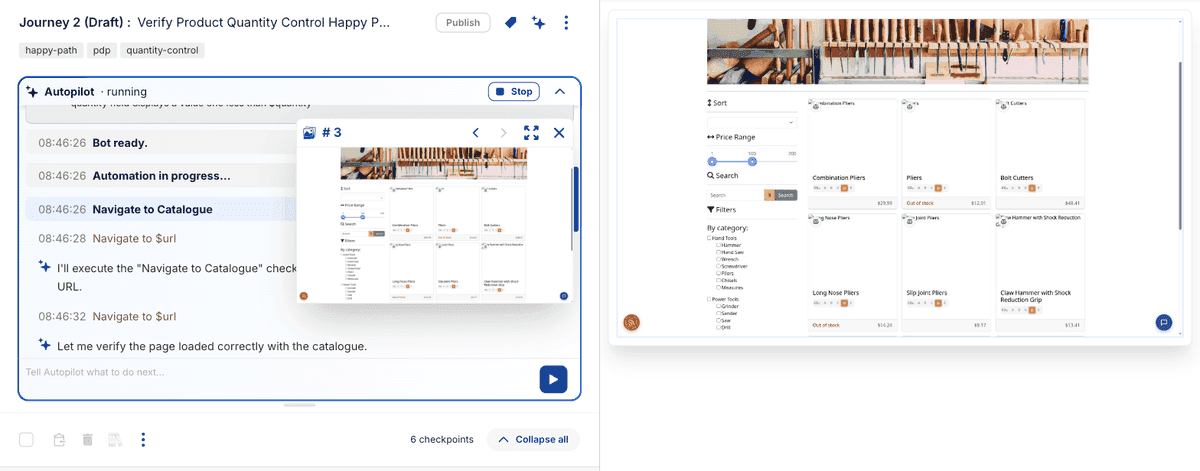
- It executes in a live browser. Autopilot works through the journey top to bottom, checkpoint by checkpoint. Existing steps are executed as-is; where a checkpoint has only an objective, Autopilot inspects the page, identifies the elements it needs, performs the interactions, and writes the corresponding steps. A preview panel shows the pages exactly as Autopilot sees them, with its intended targets highlighted, alongside a narration of its reasoning.
- It pauses rather than guessing. Where Autopilot hits something it can't resolve, a control it can't set precisely, an ambiguous target, it stops, explains the problem, and waits. The header switches to needs input and the run doesn't continue until you answer.
- Generated steps are real steps. Autopilot writes standard Virtuoso steps into the journey, inspectable and editable like any manually authored step.
- It validates the result. On completion, Autopilot re-runs the whole journey in a fresh browser with no AI involvement. Authoring sessions run against a browser whose state and timing differ from a clean run, so this validation execution is what demonstrates the journey will behave deterministically in normal use. It reports the outcome plainly, including when the re-run doesn't pass.
- The journey is now standard. Publish it if it is still a draft, then execute it on demand, on schedule or in your pipeline like any other Virtuoso journey.
# Repairing a failing journey
Point Autopilot at a failing journey, or simply re-run it after a failure, and it enters fix mode:
Fix mode only looks at the latest execution
If the failure you want repaired isn't the most recent run, execute the journey again first.
- Failure classification. Autopilot analyses the failed execution to determine the likely root cause before acting.
- Application change vs regression. If the application has changed but the behaviour is still correct, a renamed control, a moved element, Autopilot updates the journey to match. If the change looks like a genuine defect, it stops and flags its analysis rather than papering over a real failure.
- Shared assets are protected. If a library checkpoint fails, Autopilot stops and reports it. Library checkpoints are used by other journeys, so it won't modify one unilaterally: that fix is yours to make.
- Failures are reported explicitly. A failed step produces a clear explanation of what went wrong. Apply the fix yourself or adjust the objective and guidance, then run Autopilot again.
# Steering a run
Standing rules belong in Autopilot directives, described under Directives: the conventions your generated steps should follow, and the standing context to apply on every run. Encoding a rule there once is more reliable than repeating it per run, and it applies to fix runs as well as builds.
For the run in front of you:
- The plan is the steering wheel. Review and adjust it by submitting Agent Instructions in the Chat before approving: hints about awkward elements, preconditions ("open the menu before interacting with the filters"), and scope corrections all belong here.
- Guidance operates within the structure. You can supply context for specific obstacles, but Autopilot will not act on instructions that contravene the journey outline. It won't, for instance, delete checkpoints on request mid-run.
- Edit between runs, not during. Modifying steps while a session is executing causes state divergence between the journey and the running session. Make manual edits while Autopilot is stopped, then start a new run.
- You can answer it mid-run. When Autopilot pauses with needs input, replying in the message box works and the run resumes from your answer. You aren't limited to the Skip checkpoint / Retry step options it offers. A reply to Autopilot, or a message that steers it mid-run, is an Agent Instruction like any other.
- You can pause it. Tell Autopilot to wait in the message box and it pauses the run until you tell it to carry on.